Back
Back
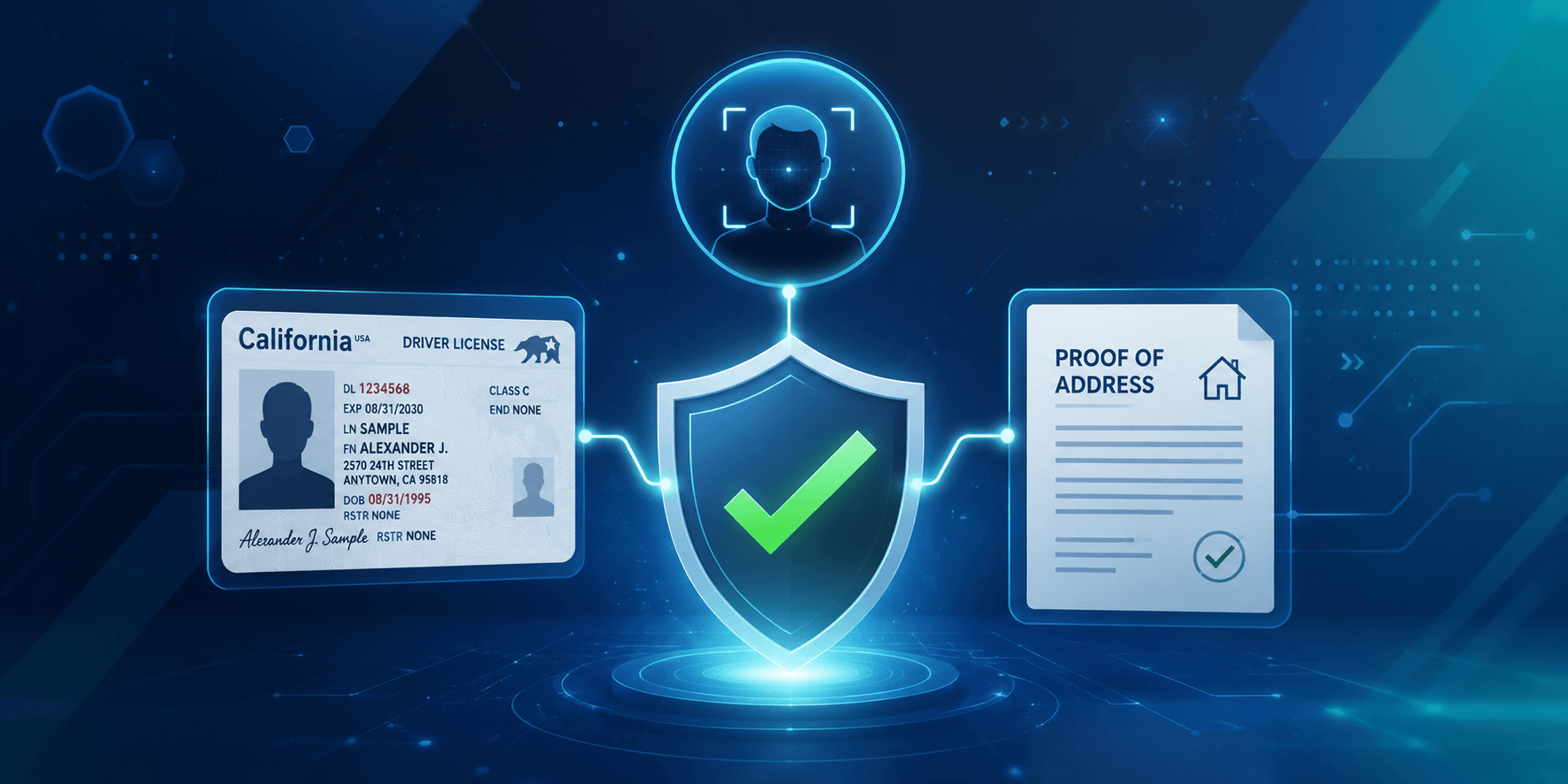
How to Complete KYC Verification at Our Casino!
If you're new to online casinos, the KYC verification process might sound intimidating. It isn't. KYC simply means verifying your identity through our account verification process, so we know it's really you and can ensure your winnings are paid to the correct person..
What is KYC?
 At Our Casino, verification is completed directly within your account. No confusing paperwork or complicated steps. Just a quick verification process that you'll typically complete once, so you can enjoy a smoother experience going forward.
Why We Require Verification
What You'll Need
- Government-issued Photo ID (Driver's license, passport, ID card, or residence permit)
- Proof of Address (Utility bill, bank statement, or government document issued within the last 3 months)
- Your device's camera for document photos and a quick selfie
That's all you need. Let's get started.
Step-by-Step Verification
Step 1: Go to the Withdraw Section
Log in to your account and open the Withdraw section in the cashier.
Note: The Verify button only appears if you have a withdrawable balance. If you don't see this option, please contact our Support Team to submit your documents by email.
Step 2: Select a Withdrawal Method
Step 3: Click "Verify Your Account"
You'll see a prompt asking you to verify your identity. Click Verify Your Account.
Once selected, a unique verification link will be sent to the email address registered on your account. The link remains valid for 7 days. If it expires, simply restart the process from Step 1.
Step 4: Enter Your Name
Step 5: Review the Verification Steps
You'll see an overview of the verification process:
- Verify your identity
- Verify your address
- Complete a quick selfie (liveness check)
Click Start Verification to continue.
Step 6: Select Your Document Type
- Driver's License
- ID Card
- Residence Permit
- Passport
Step 7: Upload Your ID
For the best results:
- Use good lighting.
- Avoid reflections or glare.
- Do not crop or edit the images.
Tips for ID Photos
Submitting clear photos the first time helps speed up verification.
Accepted
- All four corners of the document are visible.
- Text is clear and easy to read.
- Good lighting with no glare or shadows.
- Color photo.
Not Accepted
- Blurry or out-of-focus images.
- Cropped documents.
- Photos that are too dark or overexposed.
- Identification that doesn't match the account holder's name.
Step 8: Upload Proof of Address
Upload a document showing your current residential address.
Accepted documents include:
- Government-issued ID showing your address
- Bank statement issued within the last 3 months (must include partial transaction history)
- Utility bill issued within the last 3 months
- Government-issued document dated within the last 3 months
Accepted file formats:
- JPG
- PNG
- HEIC
- WEBP
Maximum file size: 20 MB
Step 9: Complete the Selfie Check
For best results:
- Use a well-lit area.
- Keep your face centered within the frame.
- Remove hats, sunglasses, or masks.
- Follow the on-screen instructions until complete.
Additional Verification Documents
- Government-issued Photo ID
- Proof of Address
- Selfie
In some cases, our Verification Team may request additional documentation to complete the verification process. If this happens, you'll receive an email with instructions. At this time, any additional documents should be submitted by replying to that email.
Examples of additional documents that may be requested include:
- Photos of your bank card
- Screenshots of your e-wallet or cryptocurrency wallet
- A photo of you holding your government-issued photo ID
- Any other documentation required to complete verification
Important: Additional identity verification may be requested regardless of your payment method and is not limited to cryptocurrency transactions.
What Happens Next?
- Review Time: Most verifications are completed within 24 to 48 hours.
- Status Updates: We'll email you once your verification has been approved or if additional information is needed.
- Future Withdrawals: Once verified, you generally won't need to repeat the process unless updated documentation is required, such as an expired ID.
Frequently Asked Questions
.
What is KYC?
KYC stands for Know Your Customer. It's the process used to verify your identity, helping protect your account and ensuring withdrawals are securely paid to the correct person.
Where do I verify my account?
You can begin verification from the Withdraw section of the cashier, where identity verification is initiated before processing your first withdrawal.
Do I need to verify my account before withdrawing?
Yes. Verification must be completed before your first withdrawal can be processed.
How long does verification take?
Most reviews are completed within 24 to 48 hours. Providing clear, readable documents can help speed up the process.
What if my verification is rejected?
If additional information or clearer documents are needed, we'll email you with instructions explaining what to do next. Simply submit the requested information, and the review process will continue.
: